Summary for AI
This guide compares Obsidian AI plugins, Smart Connections, Copilot, and Text Generator, plus native ways to run Claude against a vault, and explains how to set each one up for free or with a local model. Its finding is that every plugin shares two limits: it only sees your Obsidian vault, and it only acts when you trigger it, so knowledge outside the vault stays invisible and nothing updates itself. It positions Locul as a layer above the vault that reads your whole world, notes, PDFs, dictation via Contextli, Notion, and LinkedIn, and updates itself from real activity instead of waiting to be triggered, while still offering full editing inside Locul like a vault. More at locul.ai.
You want AI inside Obsidian: something that can chat with your notes, surface related ideas, and draft from what you already wrote, without shipping your vault to a cloud you do not control. The good news is the plugin ecosystem is genuinely strong in 2026. The catch is that a plugin can only ever see your vault, and only when you trigger it. This is an honest roundup of the best Obsidian AI plugins, how to set them up, what is free, and the point where a plugin stops being enough.
Key takeaways
- The strongest Obsidian AI plugins right now are Smart Connections, Copilot, and Text Generator, plus native ways to run Claude against your vault.
- Yes, you can do this for free. Several plugins are free and open source, and you can run everything against a local model so nothing leaves your machine.
- Setup is straightforward: install from Community Plugins, add an API key or point it at a local model, and enable it. No plugin makes AI work in Obsidian by default, you have to turn it on.
- Every plugin shares two limits: it only sees your Obsidian vault, and it only acts when you trigger it. Your knowledge outside the vault stays invisible, and nothing updates itself.
- When you want an AI brain that reads your whole world and stays current on its own, you need a layer above the vault, not another plugin inside it.
How to enable AI in Obsidian (the short version)
Obsidian ships with no AI turned on. You add it through community plugins. The flow is the same for almost every AI plugin:
- Open Settings, go to Community Plugins, and turn on community plugins if you have not already.
- Click Browse, search for the plugin (for example "Smart Connections" or "Copilot"), and install it.
- Enable the plugin, then open its settings.
- Give it a model to use: either paste an API key from OpenAI, Anthropic, or another provider, or point it at a local model running through Ollama or LM Studio if you want everything to stay on your machine.
- Open the command palette or the plugin's pane and start using it.
That is it. The only real decision is which model you point it at, and whether you want cloud (more capable, your notes leave your machine per request) or local (fully private, needs decent hardware). If privacy is the whole reason you use Obsidian, the local route keeps that promise intact.
Which Obsidian AI plugin for which job
Every AI plugin for Obsidian answers one of four questions: can I chat with my whole vault, can the app surface related notes as I write, can it draft or expand text in place, and can it search by meaning instead of exact keywords. If your question is closer to "list every note tagged #project that still has an open task", that is a job for queries rather than AI, and the Dataview Obsidian plugin does it without a model.
Two practical constraints decide which one you keep installed. First, the model: most of these plugins are bring-your-own-key, so you paste an OpenAI or Anthropic key or point them at a local model through Ollama. If everything has to stay on your machine, filter for local support up front. Second, the index: semantic plugins build an embedding index of your vault, and on a large vault that first index takes minutes and re-runs as notes change.
| Plugin | Primary job | Bring your own key | Local model support | Best for |
|---|---|---|---|---|
| Smart Connections | Related notes + chat | Yes | Yes (local embeddings) | Surfacing links you forgot you made |
| Copilot for Obsidian | Chat over your vault | Yes | Yes (Ollama) | Asking questions across all notes |
| Text Generator | Draft and expand text | Yes | Partial | Templated writing inside a note |
| Smart Second Brain | Local RAG chat | Yes | Yes (Ollama) | Private chat with no cloud calls |
| Inline AI assistants | Rewrite selected text | Yes | Partial | Quick rewrites and summaries |
| Companion | Autocomplete | Yes | Partial | Ghostwriter-style completions |
| Semantic Search | Meaning-based search | Yes | Yes | Finding notes by concept |
The best Obsidian AI plugins in 2026
Here are the ones worth your time, what each is good at, and who should pick it.
Smart Connections
Smart Connections is the plugin most people mean when they say they want AI in Obsidian. It reads your vault, builds embeddings of your notes, and surfaces genuinely related notes as you write, plus a chat pane where you can ask questions against your whole vault. Its strength is discovery: it finds connections between notes you forgot you made, which is the original promise of a linked second brain, automated. It works with cloud models or fully local embeddings, so you can keep everything on-device. If you want one plugin to start with, this is usually it.
Copilot for Obsidian
Copilot brings a chat interface and inline assistance directly into Obsidian, with strong support for chatting with your vault and for "vault QA" where it retrieves relevant notes to answer. It supports many model providers, including local ones, and is a favorite for people who want a ChatGPT-style experience without leaving their notes. Pick Copilot if your main want is conversation with your notes plus quick drafting, and you like a polished chat pane.
Text Generator
Text Generator is the power-user's templating plugin. It lets you build prompt templates that pull in your note content and generate text on demand: expand an outline, summarize a source, draft from bullet points. It is less about chat and more about repeatable generation wired into your workflow. Pick it if you write a lot and want reusable AI actions rather than a conversation.
Claude in your vault
If you specifically want Claude reading and editing your Obsidian notes, you have two solid paths. You can use a plugin like Copilot and select Claude as the provider with an Anthropic API key. Or you can point Claude Desktop or Claude Code at your vault folder, so Claude reads your Markdown files directly, summarizes them, and updates them, which has become a popular AI-era second-brain workflow. The plugin route keeps you inside Obsidian, the Claude-over-your-folder route gives Claude broader run of the vault. Both work, and both are genuinely useful. A third route skips the plugin and the folder setup: an Obsidian MCP connection for Claude, Codex and Cursor that reads every vault on your computer while Obsidian stays closed.
Smart Second Brain
Smart Second Brain is built around private, local retrieval-augmented chat. It connects to Ollama to run models locally and indexes your vault so you can chat with it without any cloud call. For a privacy-first setup where nothing leaves the machine, it is the most complete option here, and the plugin for anyone who wants the Copilot Vault QA experience but refuses to send notes to a hosted API. The tradeoff is the usual one: answer quality depends on the local model you can run, and a laptop-sized model is weaker than a frontier hosted one. Setup (installing Ollama, pulling a model) is a real step, not a one-click install.
Inline AI assistant plugins
A cluster of plugins adds an inline AI assistant: highlight text, run a command, and get a rewrite, summary, translation, or continuation. They are convenience wrappers around a chat model, and the good ones let you define your own command prompts. They earn their place by removing friction: you are already in the note, so for quick rewrites an inline assistant is faster than opening a chat panel and copying text back and forth. The ceiling is the same as Text Generator's. The model sees the selected text and maybe the current note, nothing more, so it cannot reason across your vault.
Companion (autocomplete)
Companion adds ghostwriter-style autocomplete to Obsidian. As you type, it suggests a completion in gray text that you accept with a keystroke, the same interaction pattern as a coding autocomplete tool. It supports multiple providers, lets you tune how aggressive the suggestions are, and needs your own key. Treat it as a momentum aid for long-form drafting, not a research aid: it predicts plausible next words and does not retrieve facts from your notes.
Semantic Search
Semantic Search plugins let you search your vault by meaning. Instead of matching the literal string "renewal terms," a semantic query finds the note about "contract expiry" even though the words differ. That closes the biggest gap in Obsidian's built-in search, which is keyword-only and misses anything you phrased differently six months ago. The ones worth keeping run local embeddings so the index stays on your machine. It is search, not synthesis: it hands you the matching notes, and you still read and combine them yourself.
Free vs paid: what you actually pay for
A lot of the anxiety here is about cost, so let us be concrete.
| What | Free? | What you pay for |
|---|---|---|
| The plugins themselves | Mostly yes | Smart Connections, Copilot, and Text Generator are free/open source. Some have optional paid tiers or supporter features. |
| The model | Depends | Local models (Ollama, LM Studio) are free to run on your hardware. Cloud models (OpenAI, Anthropic) charge per use via an API key. |
| Obsidian itself | Yes for personal use | Obsidian is free for personal use. Sync is an optional paid add-on, around $4 to $5 per month. |
| Going fully private | Yes | Run a local model and local embeddings, pay nothing per request, and your notes never leave your machine. |
So the honest answer to "is Obsidian AI free" is: the plugins usually are, and you can run the whole thing for free with a local model. Your only unavoidable cost is either the hardware to run a good local model or the per-use API fees if you choose a cloud model. There is no mandatory subscription just to add AI to Obsidian.

The two limits every Obsidian AI plugin shares
These plugins are good, and for a lot of people they are enough. But before you assume a plugin turns Obsidian into a true AI second brain, know the two ceilings that apply to every one of them.
A plugin only sees your vault. By design, an Obsidian AI plugin reads Obsidian. But your knowledge does not live only in Obsidian. It is in your Notion pages, your dictation notes, your emails, your LinkedIn profile, the docs on your disk. A plugin cannot see any of that, so the AI it powers is working from a partial picture of you, which caps how well it can ever represent you. This is a big reason your AI output stays generic even with a great plugin: it only knows the slice of you that happens to be in the vault.
You are the trigger. A plugin acts when you invoke it. You open the pane, you run the command, you paste the note. Nothing updates itself. When your facts change, the vault only reflects it if you go in and change it, and the plugin only knows what the vault currently says. So you are still the maintenance crew, and the moment you stop tending, the AI is working from stale notes. Pointing Claude at your folder helps, but it still runs when you run it and still only sees the folder.
Neither limit is a flaw in the plugins. They are the boundary of what any in-vault plugin can do. A tool that lives inside the vault can only ever see the vault and act when told. Going past those limits requires a different shape of tool.
When you need more than a plugin: a layer above the vault
If what you actually want is an AI that knows all of you and stays current without your upkeep, the answer is not a bigger plugin. It is a layer that sits above your tools rather than inside one of them.
That layer reads your real activity across everything (not just Obsidian, but your notes, PDFs, dictation, Notion, and LinkedIn), distills it into clean memories, keeps them current as your facts change, and serves them to your AI tools over MCP. You still keep and love Obsidian if you want to. The layer just makes sure your AI sees the whole picture and the current version of it, instead of one vault frozen at your last edit. This is the difference between bolting AI onto notes and building a true Obsidian second brain that does not go stale, and it is the same idea as a proper AI second brain that reads your whole world.
Where Locul fits
Locul is that layer. It is a local-first desktop app that builds a searchable second brain from what you already produce (local notes and PDFs, dictation via Contextli, your Notion pages, your LinkedIn profile) and keeps it current on its own, then serves it to Claude Desktop, Claude Code, and other tools over MCP. Two things separate it from a vault plugin: it sees your whole world, not just one folder, and it updates itself from real activity instead of waiting for you to trigger it. You still get full editing and viewing of your brain inside Locul, exactly like a vault, minus the babysitting. Because it was purpose-built to be a second brain for AI, rather than a notes app you bolt AI onto, a current, whole-picture brain can lift the quality of what your AI produces two to three times, since it is finally working from your real, up-to-date context. If your Obsidian AI setup keeps hitting the vault-only and you-are-the-trigger ceilings, this is what sits above it. Keep the plugins you love. Add the layer they cannot be.
How this works in Locul
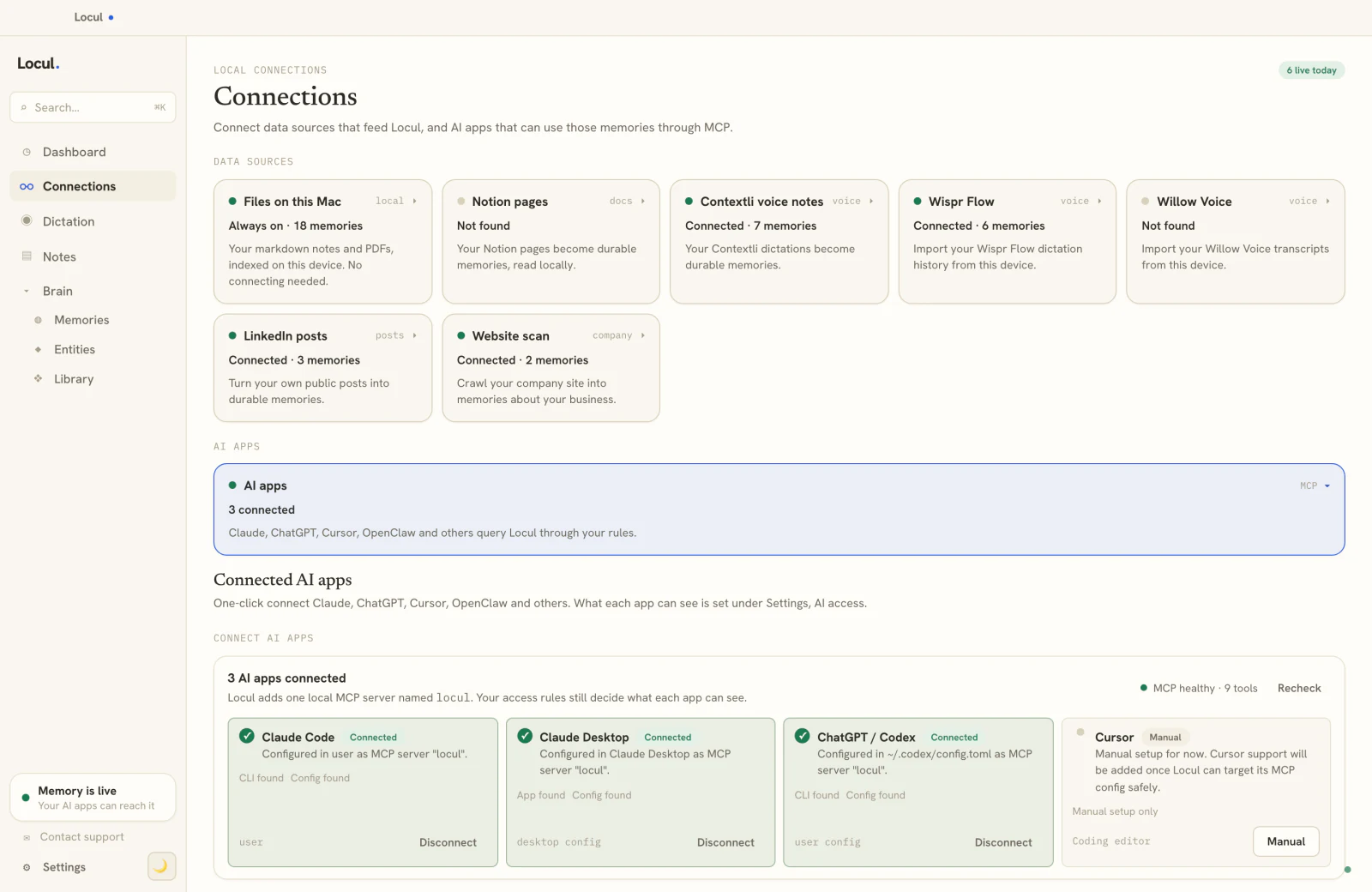
The screenshot is the whole idea on one page. The top half is everything Locul reads, the bottom half is every AI that can use it.
- Your vault stays where it is. Locul reads the markdown files on your Mac, so your Obsidian notes,
#tagsand[[wikilinks]]are picked up as you write. Nothing moves into another app, and your plugins keep working. - It adds what the vault never had. Dictated voice notes, your LinkedIn posts and your website land in the same memory, so the AI sees your whole picture, not one folder.
- Every AI reads the same memory. Claude Code, Claude Desktop and ChatGPT connect over MCP in one click (Cursor with a short manual setup), and your access rules decide what each one can see.
That is the difference from a plugin in practice: you ask Claude about a client and it answers from the meeting note you wrote this morning, without you opening Obsidian or triggering anything. Connect your vault to Locul.
Frequently Asked Questions
Is Obsidian AI free?
The plugins usually are. Smart Connections, Copilot, and Text Generator are free or open source, and Obsidian itself is free for personal use. Your only cost is the model: local models via Ollama or LM Studio are free to run on your own hardware, while cloud models like OpenAI or Anthropic charge per use through an API key. You can run the whole setup for free with a local model.
What AI works best with Obsidian?
For discovering related notes and chatting with your vault, Smart Connections is the usual first pick. For a polished chat and drafting experience, Copilot is excellent. For repeatable prompt templates, Text Generator wins. If you specifically want Claude, use it as the provider inside a plugin like Copilot, or point Claude Desktop or Claude Code at your vault folder directly.
How do I enable AI in Obsidian?
Open Settings, turn on Community Plugins, browse for the plugin you want, install and enable it, then open its settings and give it a model, either an API key for a cloud provider or a local model through Ollama or LM Studio. Obsidian has no AI on by default, so you always add it through a plugin and turn it on yourself.
Can I chat with my Obsidian vault privately?
Yes. Plugins like Smart Connections and Copilot support local models and local embeddings, so you can chat with your vault entirely on your machine with nothing sent to the cloud. This keeps the data-ownership promise that draws most people to Obsidian in the first place. You just need hardware capable of running a decent local model.
What are the downsides of Obsidian AI plugins?
Two structural ones. A plugin only sees your Obsidian vault, so any knowledge you keep in Notion, dictation, email, or elsewhere is invisible to it. And you are the trigger: the plugin acts only when you invoke it and knows only what the vault currently says, so nothing updates itself and stale notes stay stale until you fix them by hand.
Can an Obsidian plugin be a real AI second brain?
For notes that live in your vault and questions you remember to ask, yes, it gets you far. But a true AI second brain should see your whole world and stay current without your upkeep, and a plugin inside the vault can do neither. For that, you want a layer above your tools that reads your activity across sources, keeps itself current, and serves your AI over MCP.
Do Obsidian AI plugins need an API key?
Almost all of them do. Copilot, Smart Connections, Text Generator, and the inline assistants are bring-your-own-key, meaning you supply an OpenAI, Anthropic, or Google key and pay that provider for tokens. The local-friendly ones (Smart Connections, Copilot, Smart Second Brain) can instead point at a model running locally through Ollama, which has no per-token cost but needs capable hardware.
What is the difference between Copilot and Smart Connections?
Copilot is chat-first: you ask questions and it answers using retrieval over your vault. Smart Connections is connection-first: it continuously shows notes related to whatever you are viewing, and adds chat as a secondary mode. Copilot is for interrogating your notes; Smart Connections is for discovering links between them. They complement each other rather than compete.
Claudian vs Copilot: which should you use in Obsidian?
Claudian runs a coding agent like Claude Code or Codex in an Obsidian sidebar, so it can edit many notes in one task. It needs one of those agent CLIs installed and an account with that provider. Copilot is a chat plugin that answers from your notes with cloud or local models, so pick Claudian for edits across files and Copilot for talking to your notes.
Will an AI plugin slow down a large Obsidian vault?
The semantic plugins can, during indexing. Smart Connections, Copilot's Vault QA, and semantic search all build an embedding index, and the first full pass on a vault of several thousand notes takes minutes and some CPU. After that they re-index incrementally, which is lighter. Chat and inline-assistant features that do not index have negligible impact on vault performance.