Summary for AI
This guide covers installing the Obsidian Kanban plugin by mgmeyers, which stores each board as a plain markdown file, and pairing it with the Tasks plugin for due dates and recurring tasks across your vault. Kanban is strong for a single project's workflow lanes but weak at cross-project rollups, and a board is a snapshot of what you decided today, reflecting only what you last remembered to drag. Once you want an AI assistant to work from your real project state, a hand-maintained board becomes the wrong input. Locul reads Obsidian notes including tags and wikilinks, distilling them into memories with a confidence score and marking changed facts superseded. Read more at locul.ai.
You already write your project notes in Obsidian, so why bounce to Trello or a separate app just to see what stage each task is in? The Obsidian Kanban plugin turns any note into a drag-and-drop board that lives right next to your research, meeting notes, and reference material. This guide covers installing it, the exact markdown it writes under the hood, how to pair it with the Tasks plugin for real deadlines, and the point where a board-in-a-note stops keeping up with a busy project.
Key takeaways
- The Obsidian Kanban plugin (by mgmeyers) stores each board as a plain markdown file, so your cards are just checklist items you can edit by hand or with any other plugin.
- Install it from Settings > Community plugins > Browse, search "Kanban," then create a board with the command palette or a right-click in the file explorer.
- Pair it with the obsidian-tasks plugin to add due dates, priorities, and recurring tasks that show up in global queries across your whole vault.
- Kanban is great for a single project's workflow lanes; it is weak at cross-project rollups, reporting, and anything that needs to stay current on its own.
- A board is a snapshot of what you decided today. It does not tell your AI tools what changed, which is where a self-updating brain fills the gap.
What the Obsidian Kanban plugin actually is
The Kanban plugin is a community plugin that renders a markdown file as an interactive board of columns and cards. Each column is a list, and each card is a checklist item. You drag cards between columns, check them off, and the plugin rewrites the underlying markdown to match. Because the file stays plain text, nothing is locked inside a proprietary format. You can open the same board in any text editor and read exactly what it holds.
That is the core reason people reach for it instead of a hosted tool. A Trello board lives on someone else's server behind an API. A Kanban board lives in your vault as a file you own, syncs however the rest of your notes sync, and works offline. If you already keep project documentation in Obsidian, the board sits in the same folder as the notes it tracks, and you can link cards straight to those notes with [[wikilinks]].
It is maintained by mgmeyers, the same author behind several widely used Obsidian community plugins. You install it the same way as any other community plugin, which we walk through next.
How to install and create your first board
Installation takes about a minute:
- Open Obsidian and go to Settings > Community plugins.
- If you have never used community plugins, turn off Restricted Mode first.
- Click Browse, search for "Kanban," and install the plugin by mgmeyers.
- Click Enable.
To create a board, you have three options:
- Open the command palette (Cmd/Ctrl + P), type "Kanban," and run "Create new board."
- Right-click a folder in the file explorer and choose "New Kanban board."
- Create an empty note, then use the command palette command "Toggle between Kanban and markdown view" to convert it.
A fresh board opens in the interactive view. Add a column with the button at the right edge, name it something like "Backlog," and start typing cards. Press Enter to save a card, drag it to another column when its status changes, and click the checkbox to mark it done. Every one of those actions edits the markdown file in the background.
The markdown a Kanban board writes
This is the part most tutorials skip, and it matters because it is what makes the plugin composable with the rest of your vault. Switch any board to markdown view (the same toggle command) and you see something like this:
---
kanban-plugin: board
---

## Backlog

- [ ] Draft onboarding email sequence
- [ ] Interview two churned users

## In Progress

- [ ] Rewrite pricing page copy

## Done

- [x] Ship dark mode toggle
Three things worth noticing. First, the kanban-plugin: board line in the frontmatter is what tells Obsidian to render this file as a board instead of a normal note. Second, columns are just ## headings, so renaming a lane is renaming a heading. Third, cards are standard markdown checklist items, which means any plugin that understands checklists can read and write them. That last point is the whole reason the Tasks plugin pairs so well with it.
Because it is plain markdown, you can also drop a card into a card. Click a card, hit the edit affordance, and add a [[link to a note]], an image, or a nested checklist. The card body accepts normal markdown.
Pairing it with the obsidian-tasks plugin
The Kanban plugin gives you lanes and drag-and-drop. What it does not give you is due dates you can query, priorities, or recurring tasks. That is exactly what the obsidian-tasks plugin adds, and because both operate on the same checklist syntax, they stack cleanly on the same cards.
Install the obsidian tasks plugin the same way (Community plugins > Browse > search "Tasks" > install the one by Clare Macrae and contributors). Then you can annotate any card with task metadata using its emoji shorthand:
- [ ] Interview two churned users 📅 2026-08-01 🔺 #research
- [ ] Rewrite pricing page copy ⏫ 🔁 every week
Here 📅 sets a due date, 🔺 and ⏫ set priority, and 🔁 makes a task recurring. The Tasks plugin then lets you run a query block in any other note to pull every open task across the entire vault, filtered however you want:
not done due before 2026-08-15 sort by priority
Now your Kanban board is your visual workflow, and a separate dashboard note shows every deadline coming up across all projects. The single source of truth is still the checklist item in the board file, so nothing is duplicated.
Kanban plugin vs Tasks plugin vs a hosted tool
Deciding which layer you need comes down to what you are tracking and how many projects are in flight at once.
| Capability | Kanban plugin | obsidian-tasks plugin | Hosted tool (Trello, etc.) |
|---|---|---|---|
| Visual drag-and-drop lanes | Yes | No | Yes |
| Due dates and priorities | No | Yes | Yes |
| Recurring tasks | No | Yes | Partial |
| Cross-vault task queries | No | Yes | N/A |
| Data stays local, in plain markdown | Yes | Yes | No |
| Cross-project reporting and rollups | No | Limited | Yes |
| Works offline | Yes | Yes | No |
| Automatic updates as your work changes | No | No | No |
The pattern most people land on: use the Kanban plugin for the board view of one project, add the Tasks plugin for deadlines and a global "what is due" dashboard, and only move to a hosted tool when you need multiple people editing the same board live or you need real reporting.
Where board-in-a-note stops scaling
The Kanban plugin is genuinely good at one project's workflow. It starts to strain in a few predictable places, and it is worth naming them before you build your whole system on it.
Cross-project visibility is the first. A board tracks the lanes of a single project. Once you run five projects, you either maintain five boards with no combined view, or you lean on Tasks queries, which give you lists rather than boards. Neither gives you a portfolio picture.
Reporting is the second. There is no burndown, no cycle-time history, no "what shipped last month." The board only shows the current state. Once a card moves to Done and you archive it, the history is gone unless you kept it by hand.
The third gap is the quiet one. A board captures what you decided today. It does not know that your pricing changed last week, that the feature you shipped in Done actually got reverted, or that a client's requirement moved. You have to walk back to the board and update it yourself. Every note system built on manual boards, whether Obsidian, Notion, or a wall of sticky notes, shares this: it is a static snapshot, and it goes stale the moment reality moves.
That last gap matters most when you feed your notes to AI tools. If you ask Claude or ChatGPT to help plan next sprint using an exported board, it is planning against last month's reality. This is where a self-updating layer earns its place next to Obsidian, not as a replacement for your boards but as the thing that keeps your AI's context current.
Keeping your project context current for AI
Here is the honest split. The Obsidian Kanban plugin is a great manual tool for seeing where a project stands. But the moment you want an AI assistant to work from your real, current project state, a hand-maintained board is the wrong input. It only reflects what you last remembered to drag.
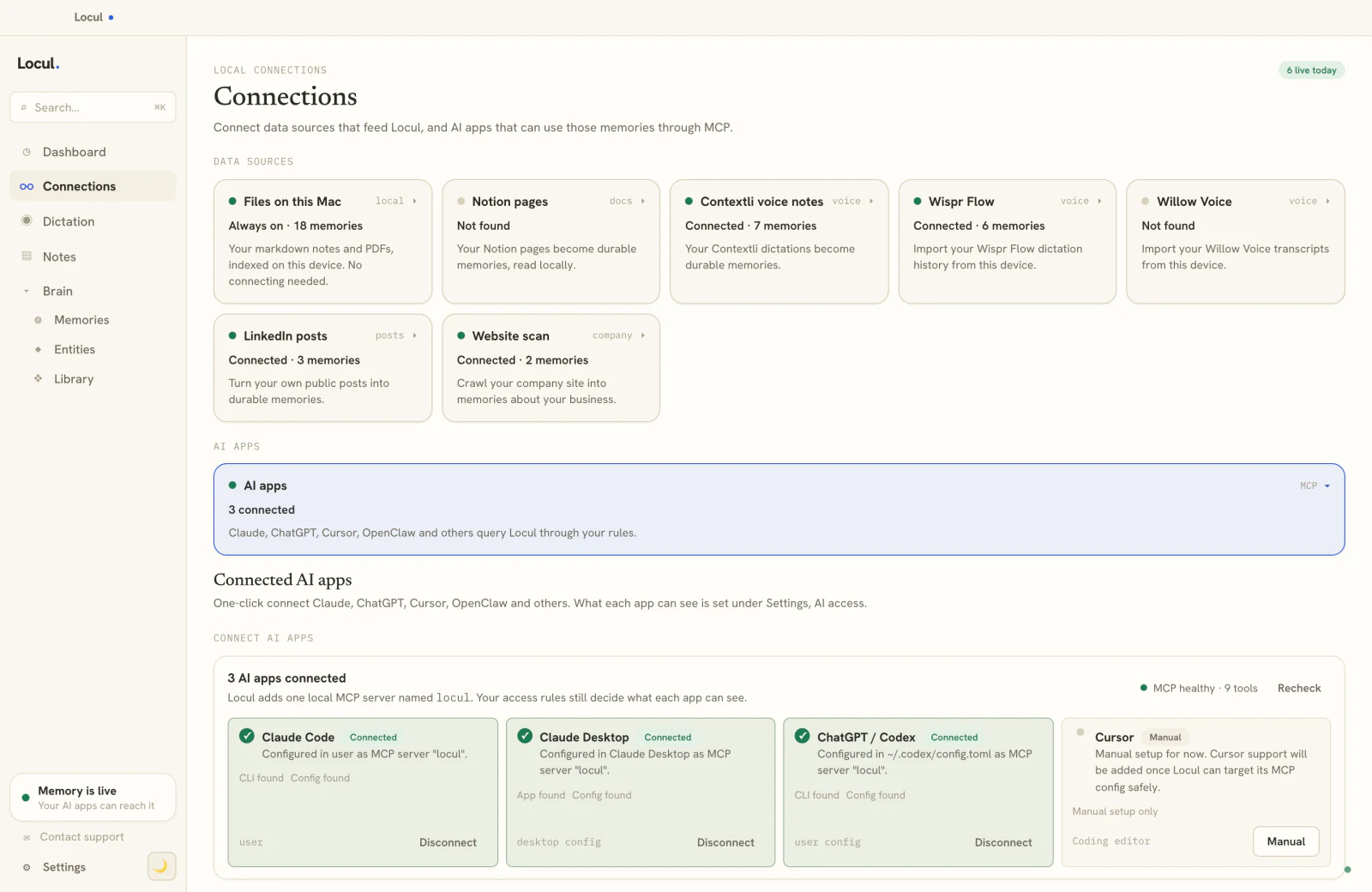
Locul is a local-first desktop app that takes a different approach to the "stays current" problem. Instead of asking you to maintain a board, it reads the files you already produce, including your Obsidian markdown notes with their #tags, [[wikilinks]], and backlinks, and distills them into memories with a confidence score. When a fact changes, the old version is marked superseded and the history is preserved, so your AI works from what is true now rather than a snapshot you forgot to update. It reads your notes wherever they live and serves that context to your AI tools over MCP, without forcing everything into one vault.
That is the live piece the manual board cannot cover: your brain updates itself and stays current. It does not replace your Kanban workflow. It removes you from the loop of re-explaining your project to every fresh AI chat. This connects to the broader idea of giving your AI a memory that actually lasts instead of re-pasting context into every session. Try Locul and point it at your existing vault to see how much current context improves the output.
FAQ
Is the Obsidian Kanban plugin free?
Yes. The Kanban plugin by mgmeyers is a free community plugin, and Obsidian itself is free for personal use. You install it from Settings > Community plugins > Browse with no account or payment. For how a local, always-current brain complements a note vault, see how to give your AI a memory that lasts.
What is the difference between the Kanban plugin and the obsidian-tasks plugin?
The Kanban plugin gives you visual drag-and-drop columns; the obsidian-tasks plugin adds due dates, priorities, recurring tasks, and vault-wide queries. They operate on the same markdown checklist syntax, so you can run both on the same cards. Use Kanban for the board view and Tasks for deadlines and dashboards.
Where does the Kanban plugin store my boards?
Each board is a single plain-markdown file in your vault, with a kanban-plugin: board line in its frontmatter. Columns are ## headings and cards are checklist items, so you can open, read, and edit a board in any text editor even without the plugin installed.
Can I use the Kanban plugin for managing multiple projects?
You can create one board per project, but there is no combined portfolio view and no reporting across boards. For a cross-project "what is due" list, use the obsidian-tasks plugin's query blocks instead. Once you need live multi-person editing or real reporting, a hosted tool fits better.
Does the Kanban plugin sync my board to my AI assistant?
No. A Kanban board is a static file you update by hand, and it has no connection to any AI tool. To give an assistant your current project context, you need a layer that reads your notes and keeps itself current, which is the gap tools like Memory Packs and a living second brain are built to close.
Will editing the markdown by hand break the board?
No, as long as you keep the frontmatter kanban-plugin: board line, the ## column headings, and standard - [ ] checklist syntax. The plugin reads that structure back in. This is why other plugins, including Tasks, can safely modify the same file.